LiveSchools365 Role Training Kit — Principal
Trainer-grade · 2026-09-23 · ~21 min · https://liveschools365.com
USER TRAINING (not QA smoke).
1. Purpose
Oversee the school day: dashboards, approvals, results, and access.
Business scenario
You start the day in the dashboard hub, clear pending leave approvals, spot-check exam progress, and confirm staff access looks correct before assembly.
Learning outcomes
- Complete the Principal Implementation Guide track end-to-end (~21 minutes).
- Oversee the school day: dashboards, approvals, results, and access.
- Use official menu paths instead of informal messaging for auditable school work.
- Know when to Mark done and how to resume from /implement or Trial Journey.
2. Sign in
- Login:
/school-management-software-login - User:
principal@liveschool - Password:
LiveSchool@123 - Guide:
/implement/principal
3–4. Guided workflows
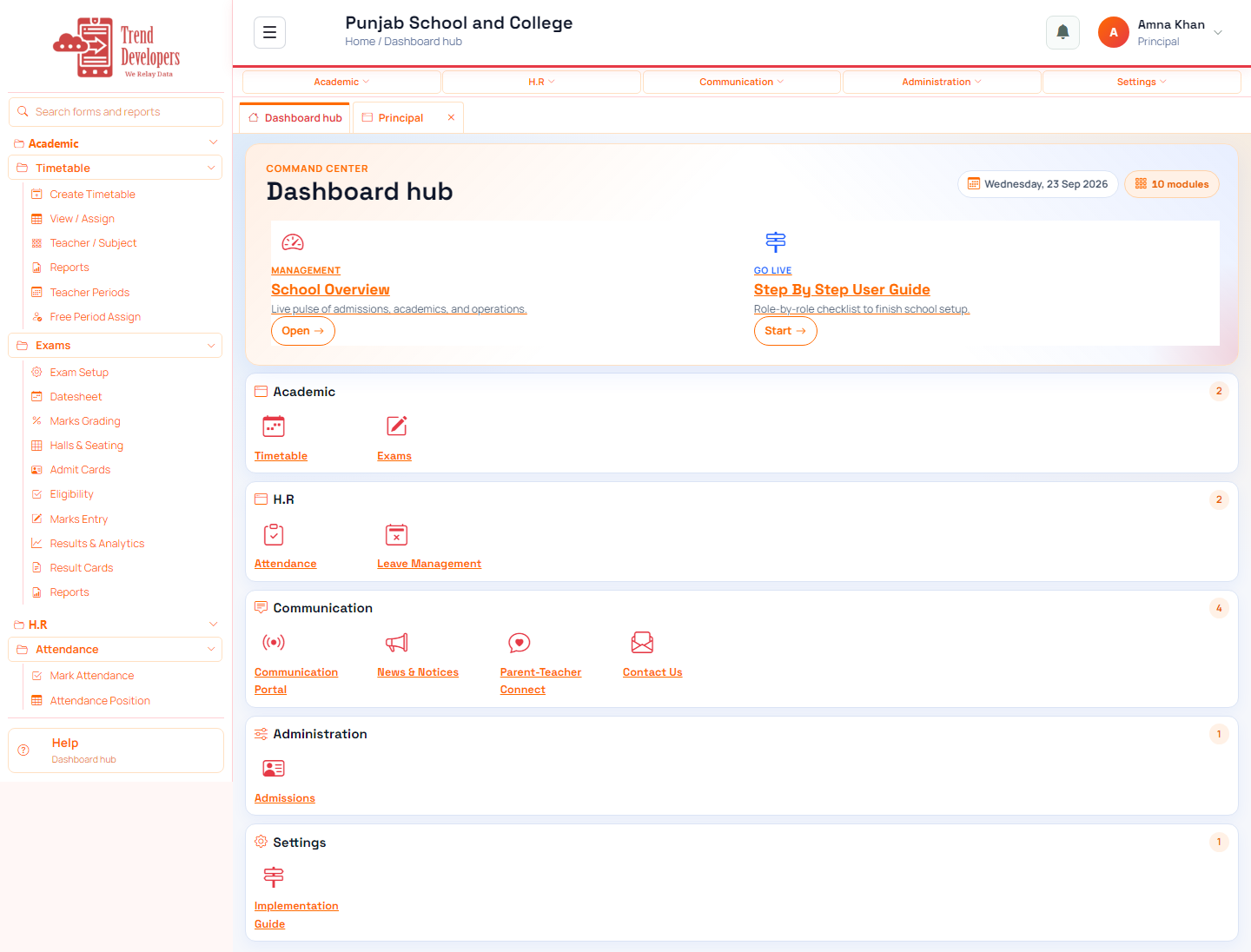
4.1 Open the command center
Main task: See every module you are allowed to use
Why: The dashboard hub is the safe starting point for leadership work.
Menu: Home → Dashboard hub
Route: /app
How to:
- After login, open Dashboard hub (/app).
- Scan the module cards you can open.
- Open School Overview if you want KPIs.
- Mark done.
Practice:
- Open live form: /app
- Follow menu path: Home → Dashboard hub
- Practice goal: See every module you are allowed to use
Expected: After this step, “See every module you are allowed to use” is true on the live system, and the Implementation Guide step “Open the command center” can be Mark done.
Mistakes:
- If this step is skipped: The dashboard hub is the safe starting point for leadership work.
- Using WhatsApp instead of the official form — the audit trail will be missing.
4.2 Approve leave
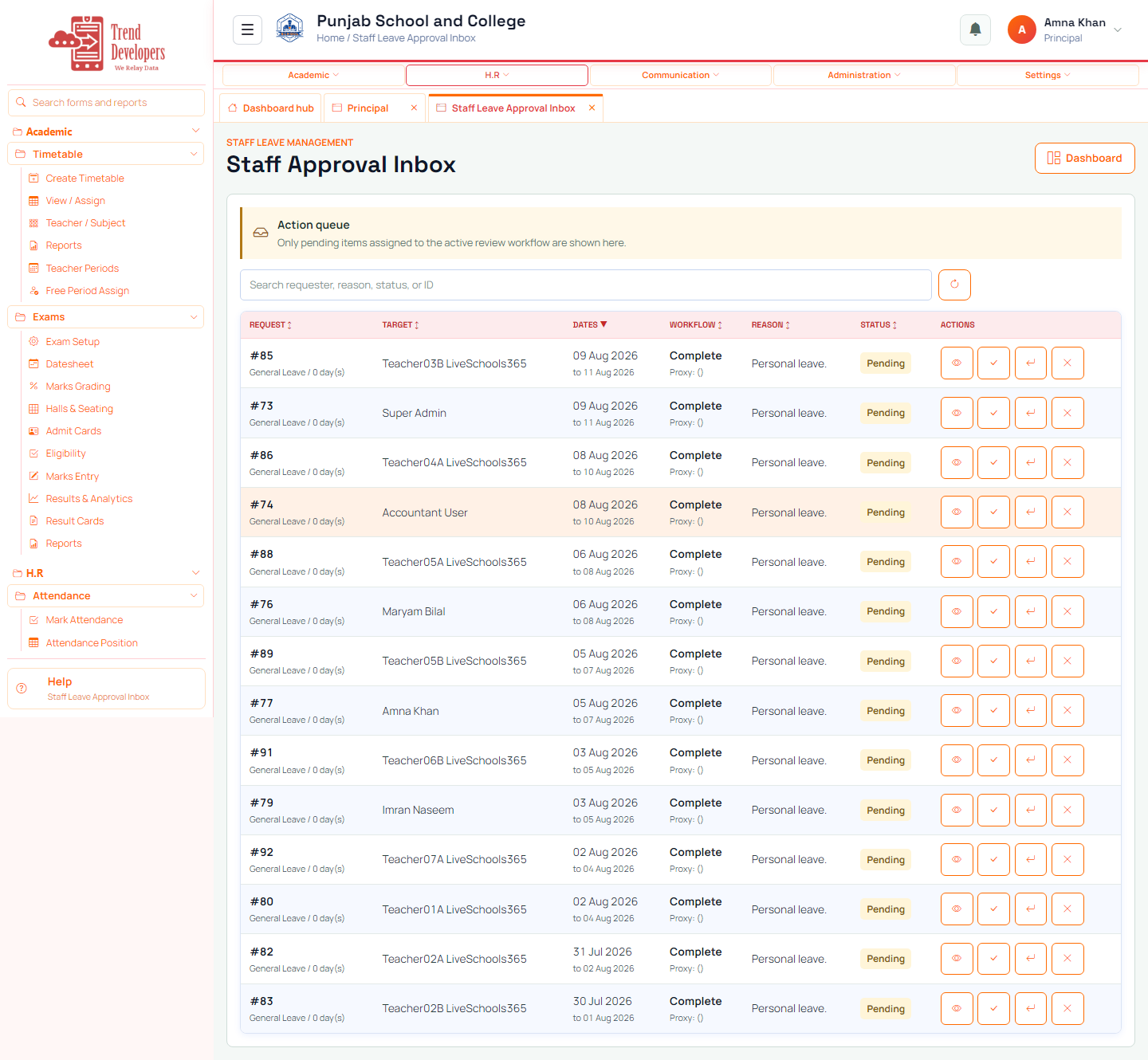
Main task: Decide pending leave requests
Why: Leave stays pending until an authorized approver records a decision.
Menu: H.R / Leave → Staff Leave → Approvals
Route: /staff-leave/approvals
How to:
- Open Staff Leave Approvals.
- Select a pending request.
- Read dates, reason, and evidence.
- Approve or reject with a short remark.
- Mark done.
Practice:
- Open live form: /staff-leave/approvals
- Follow menu path: H.R / Leave → Staff Leave → Approvals
- Practice: one-day Casual leave with reason 'Family appointment'
Expected: After this step, “Decide pending leave requests” is true on the live system, and the Implementation Guide step “Approve leave” can be Mark done.
Mistakes:
- If this step is skipped: Leave stays pending until an authorized approver records a decision.
- Approving without reading dates/reason → payroll and coverage conflicts.
4.3 Glance at exam progress
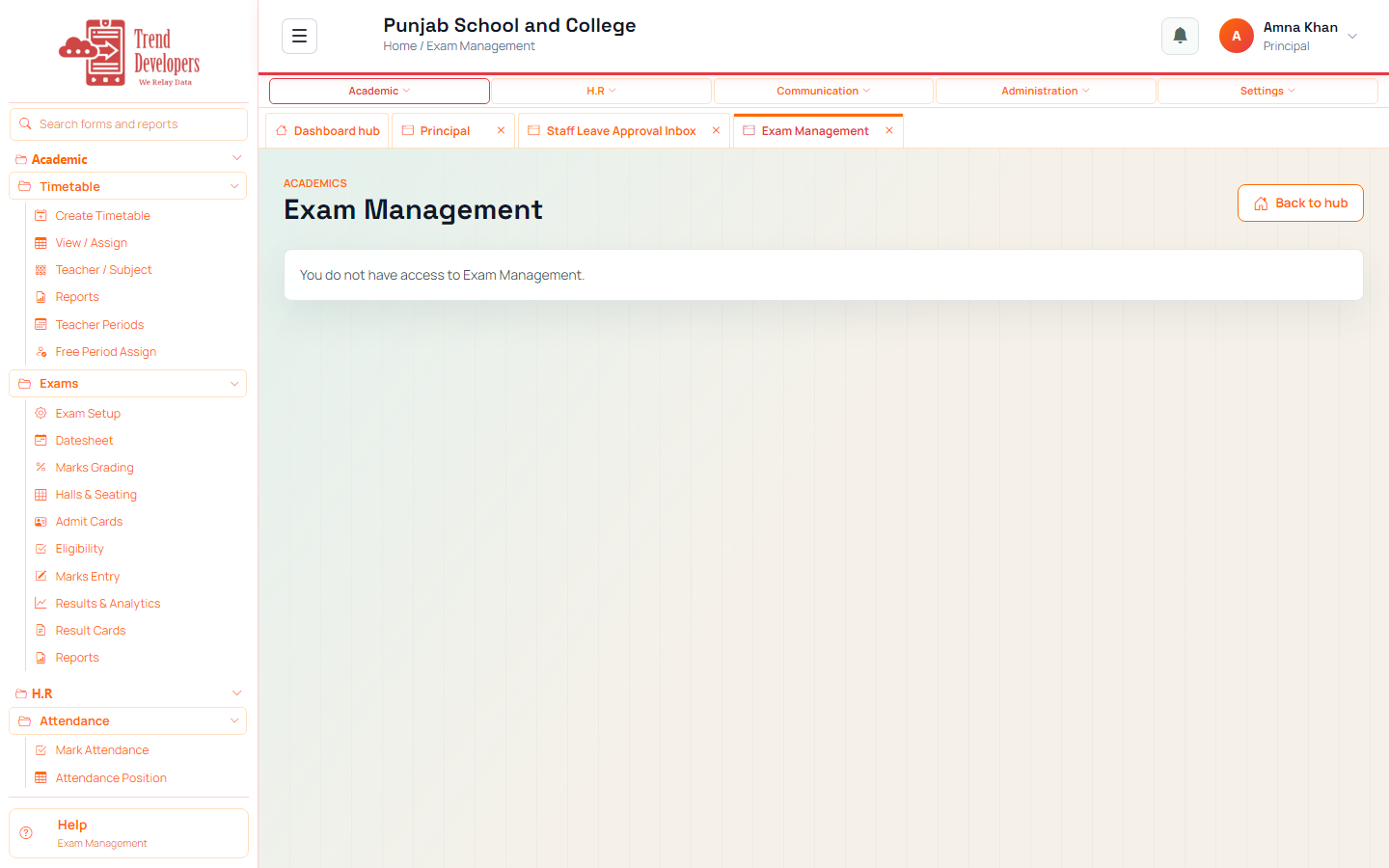
Main task: Confirm assessment work is moving
Why: Leadership checks whether papers and marks are progressing, not entering every mark.
Menu: Academic → Exams
Route: /exams
How to:
- Open Exams from Academic.
- Check published vs pending papers if shown.
- Open Results if you need a deeper look.
- Mark done.
Fields:
- Report parameters — Define the exam population and analysis scope.
- Export to Excel — Download the generated result with branding, metadata, parameters, and rows.
- Grade — Name the band, such as A+ or F.
- % From / % Upto — Set the inclusive percentage range.
- Status — Mark the band as PASS or FAIL.
Practice:
- Open live form: /exams
- Follow menu path: Academic → Exams
- Practice: enter marks for three students, save without locking until complete
Expected: After this step, “Confirm assessment work is moving” is true on the live system, and the Implementation Guide step “Glance at exam progress” can be Mark done.
Mistakes:
- If this step is skipped: Leadership checks whether papers and marks are progressing, not entering every mark.
- Using WhatsApp instead of the official form — the audit trail will be missing.
4.4 Communication overview
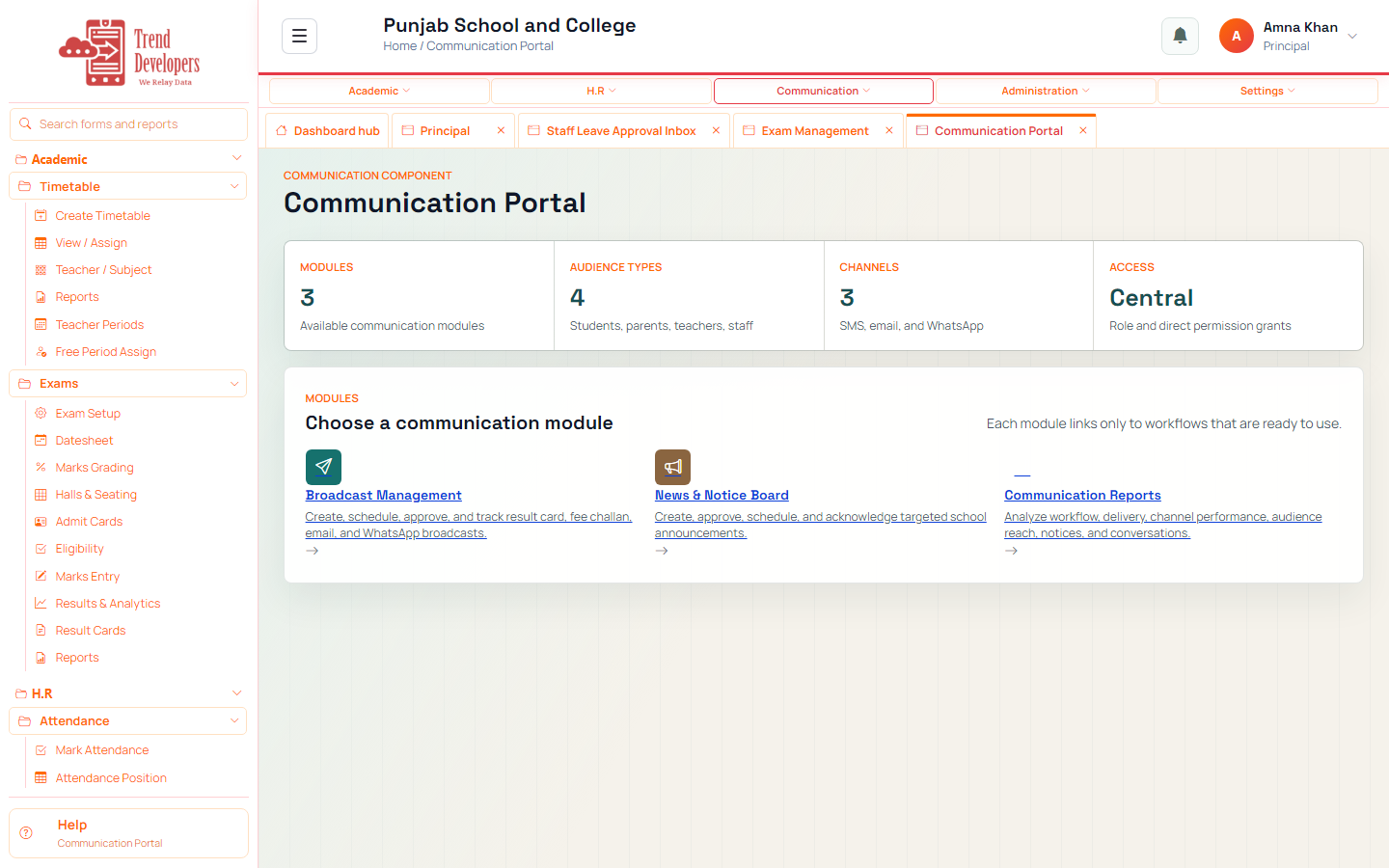
Main task: See parent and notice channels in one place
Why: The communication portal shows notices, messaging, and related tools.
Menu: Communication → Portal
Route: /communication
How to:
- Open Communication from the top menu.
- Open Notices or Parent-Teacher Connect if needed.
- Confirm channels look healthy.
- Mark done.
Fields:
- 1. Class & lesson — Choose the year, campus, grade, subject, teacher, topic, date, and duration.
- 2. Goals & standards — Select curriculum standards and write observable learning outcomes.
- 3. Teaching sequence — Map the hook, explanation, guided practice, independent practice, and closure.
- 4. Check & support — List what is needed, how learning will be measured, and how diverse learners will be supported.
- 5. Review & submit — Read the lesson as another teacher would, resolve required gaps, save, print, or submit.
Practice:
- Open live form: /communication
- Follow menu path: Communication → Portal
- Practice goal: See parent and notice channels in one place
Expected: After this step, “See parent and notice channels in one place” is true on the live system, and the Implementation Guide step “Communication overview” can be Mark done.
Mistakes:
- If this step is skipped: The communication portal shows notices, messaging, and related tools.
- Using WhatsApp instead of the official form — the audit trail will be missing.
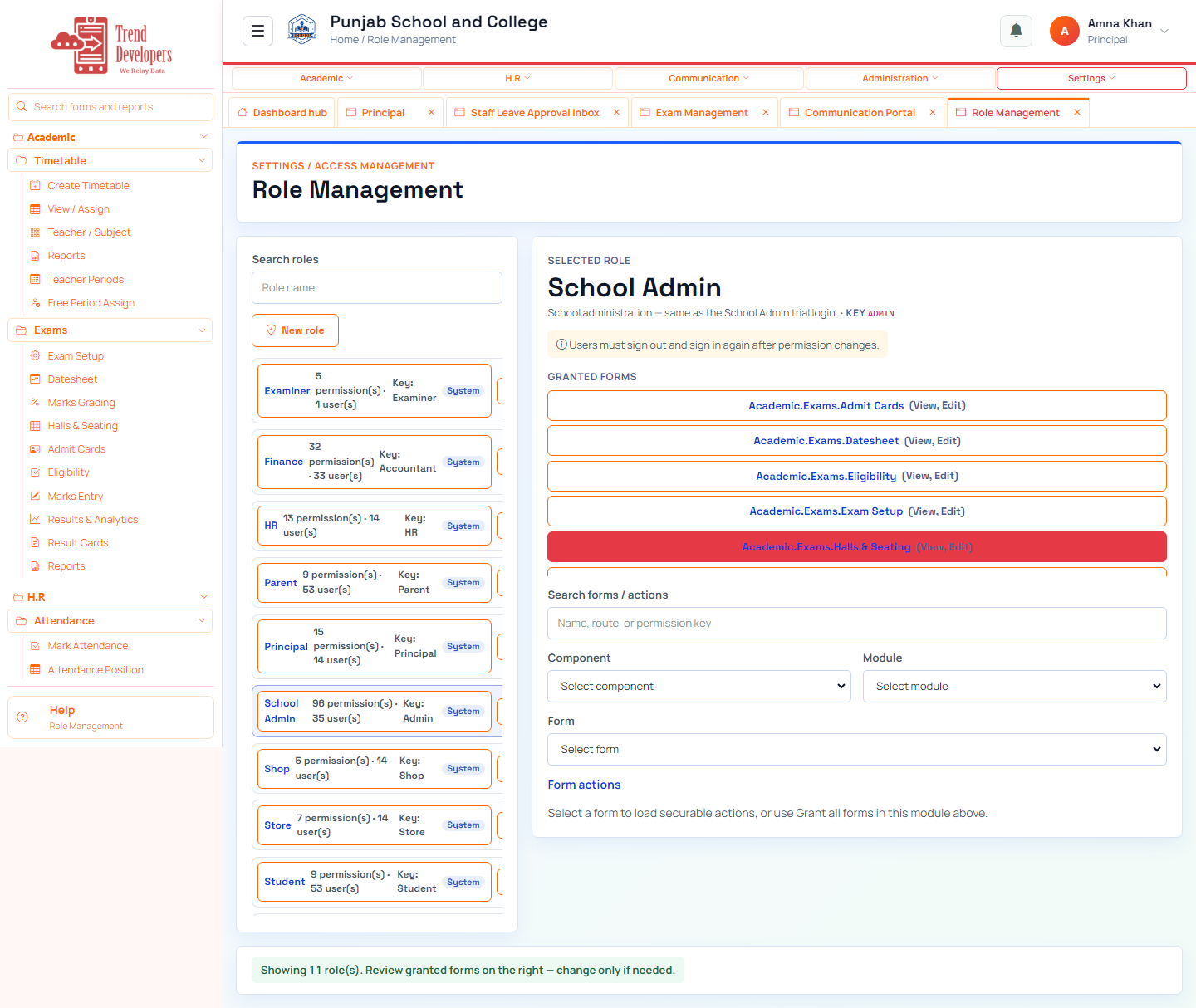
4.5 Review who has access
Main task: Confirm roles match school policy
Why: Wrong permissions mean people see fees or student data they should not.
Menu: Settings → Access Management → Role Management
Route: /security/role-management
How to:
- Open Role Management.
- Select Teacher or Accountant.
- Review granted forms list.
- Adjust if something looks wrong; users must re-login after changes.
- Mark done.
Practice:
- Open live form: /security/role-management
- Follow menu path: Settings → Access Management → Role Management
- Practice goal: Confirm roles match school policy
Expected: After this step, “Confirm roles match school policy” is true on the live system, and the Implementation Guide step “Review who has access” can be Mark done.
Mistakes:
- If this step is skipped: Wrong permissions mean people see fees or student data they should not.
- Using WhatsApp instead of the official form — the audit trail will be missing.
5. Capstone checklist
- □ Open the command center
- □ Approve leave
- □ Glance at exam progress
- □ Communication overview
- □ Review who has access
6. Knowledge check
Q: What is the first main task on the Principal track?
A: See every module you are allowed to use
Q: Which menu path opens “Open the command center”?
A: Home → Dashboard hub
Q: Why does “Approve leave” matter?
A: Leave stays pending until an authorized approver records a decision.
Q: What happens if you finish a live form but do not Mark done?
A: Later Implementation Guide steps stay locked / progress is incomplete.
Q: Demo username for this kit?
A: principal@liveschool
7. Video